
ARTICLE CONTENT:
Important Kit Details To Note
You’ll need a paid Kit plan when integrating with AccessAlly. We recommend creating Subscriber Preference links so your contacts can select to continue receiving items they’ve purchased from you, as an unsubscribe in Kit stops tags and automation rules from running.
Create Kit Automations
Once you’ve set your content in the AccessAlly Offering wizard, it’s time to head into Kit to create an automation to go with it.
This automation is optional if you’re using AccessAlly’s order forms and drip automation, but it is a great way to control exactly when new content is released and to send emails at the same time. It’s also necessary if you are using a 3rd party shopping cart, like ThriveCart, SamCart, WooCommerce, etc.
Not using Kit? Check out the other CRM automations here.
Release Automation Steps
1. Create a sequence to send out the welcome email
Go to Sequences in the main navigation menu. Click on “Create Sequence”.

2. Customize Welcome email (with login info)
You can send welcome emails directly in AccessAlly, but you could also send them here through Kit.
We only need the welcome email in the sequence. Once you are finished with customizing the email, you can click on “Save All” to publish the sequence.
Switch the email status to Published.
The email should be sent immediately so set “Delay Sending by” to ” days.
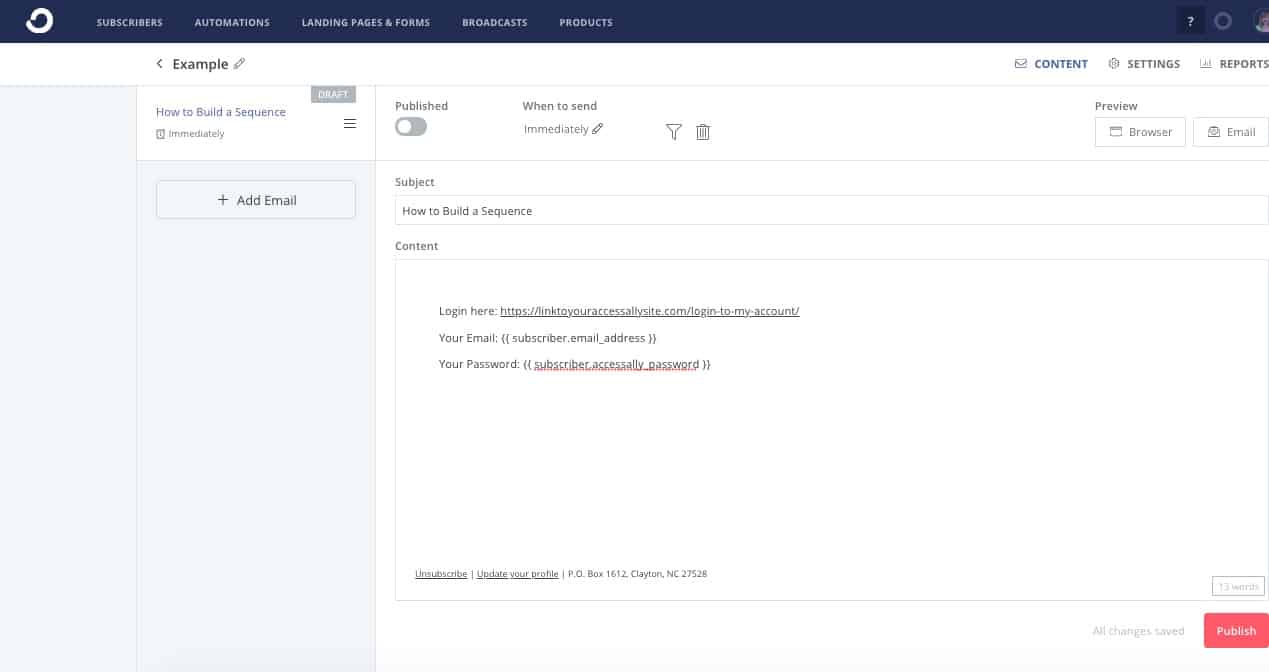
You can add anything to the welcome email that you’d like. You will include the link to your AccessAlly login page, the email address they used, and their password (optional.)
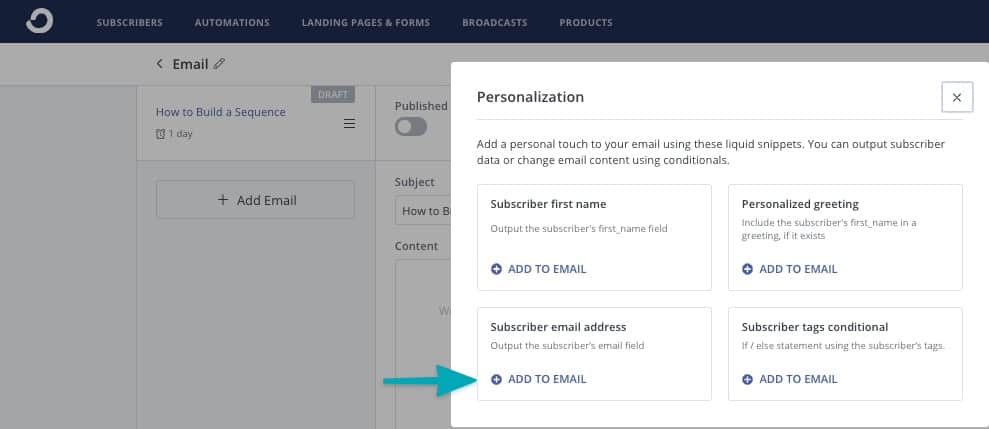
Email Address: Click the “+” sign in the email copy, then click Personalization. Next click “+” by subscriber email to add the email personalization code. As shown in the image below.
Password (Optional): Adding the password field to an email is only available if you are storing passwords in a custom field inside Kit. You will need to revise the example below by replacing accessally_password with the exact name you used for your password field stored in Kit.
Example: {{ subscriber.accessally_password }}
3. Create the welcome automation
We can now create an automation to start the sequence when a client signs up for a free offer or a paid course.
Go to Automations in the main navigation menu. Click on “AUTOMATIONS” and then the “New Automation” button.

4. Configure the event that triggers the automation
Click on CREATE AUTOMATION to configure the event that will start the automation.
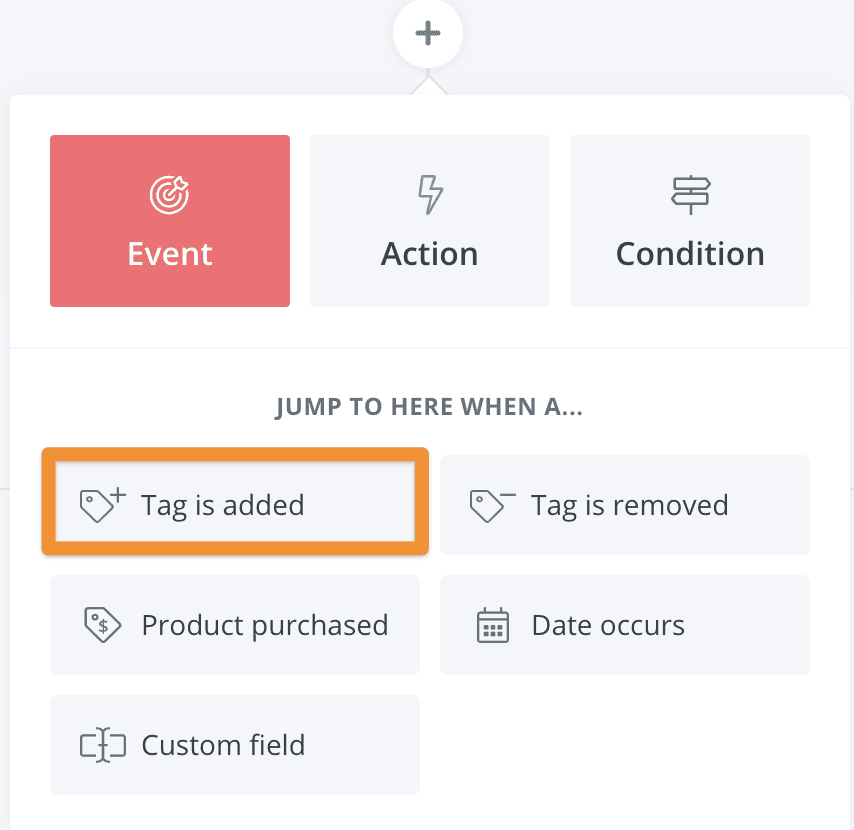
Since this is a paid course, select Tag is added to subscriber and choose the tag that is added on successful purchase of this course.
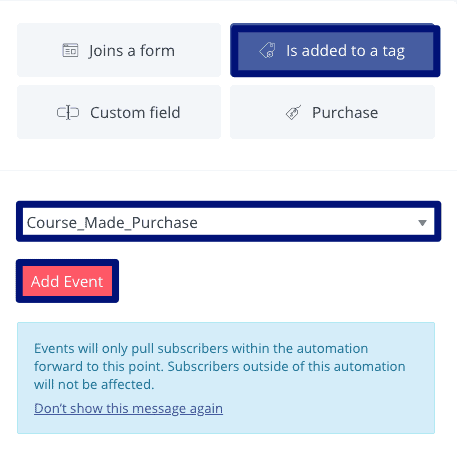
Click on Add Event when finished configuring.
If you’re using Kit’s payment system you can also use that as a trigger here instead of a tag.
Click on CREATE AUTOMATION to configure the event that will start the automation.
Select Tag is added to subscriber and choose the tag that is added on opt-in.
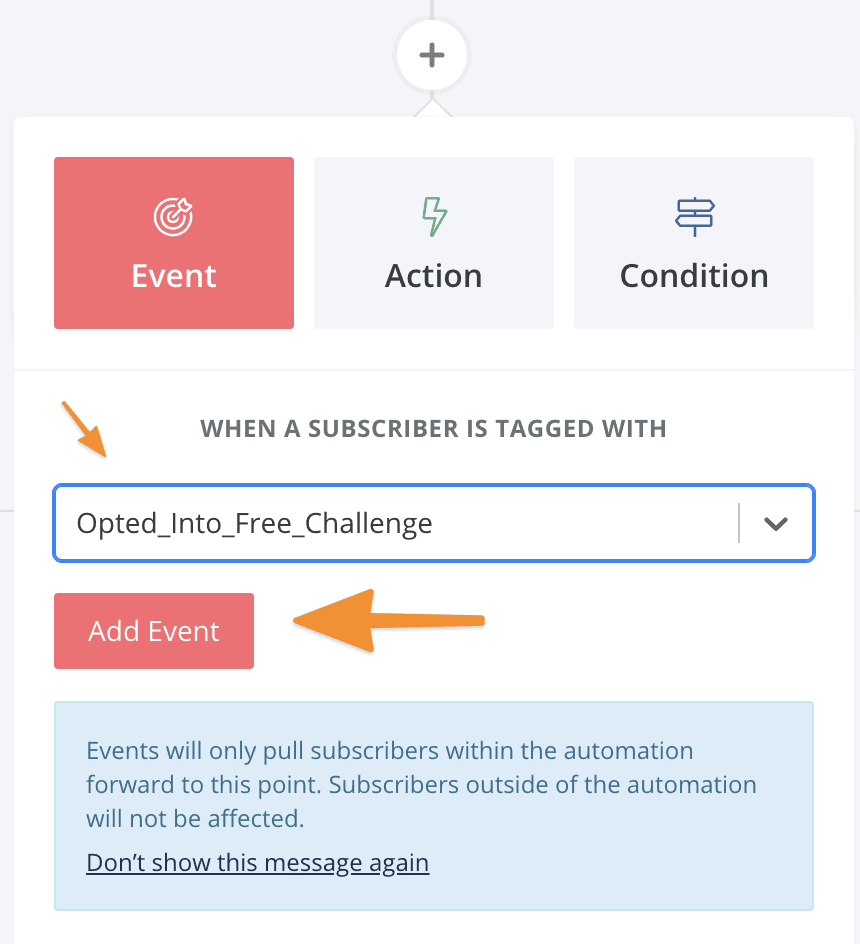

Click on Add Event when finished configuring.
5. Apply the tag to trigger a webhook
Add a new item by clicking on the “+” and choose Add or remove tag.
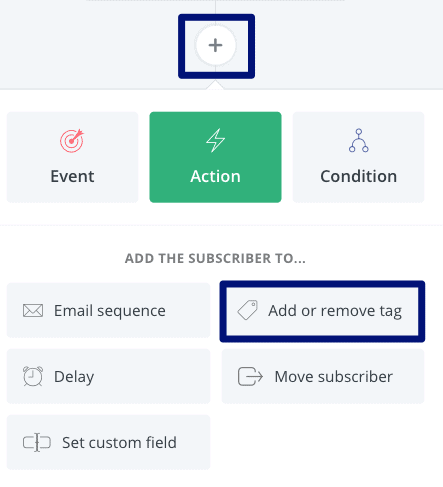
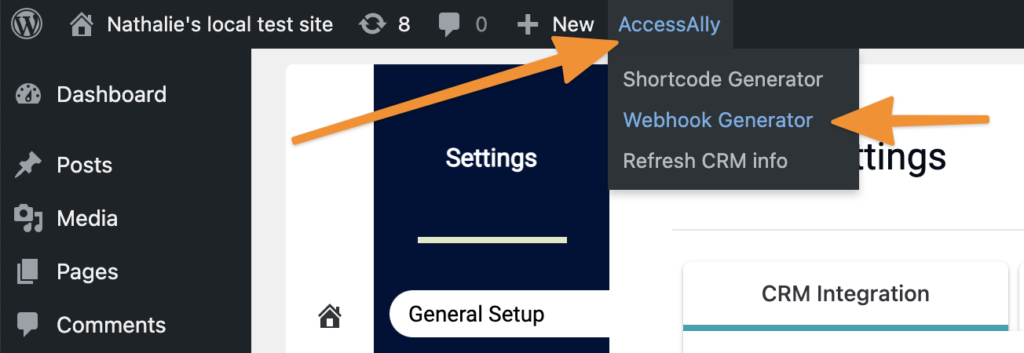
Then create a webhook associated with the tag, by going into your AccessAlly site and click in the top WordPress admin bar under Accessally -> Webhook Generator.
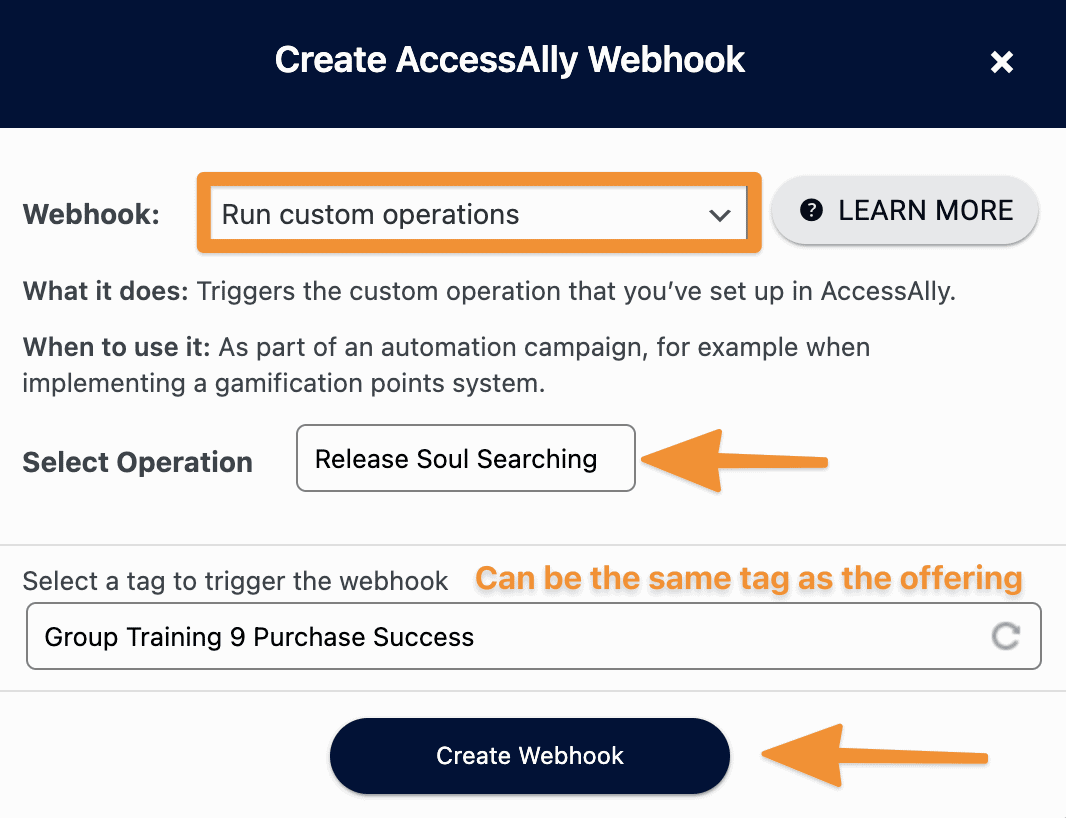
Select “Run Custom Operation” from the dropdown, and then start typing the name of your offering and choose the “Release Offering” option.
Choose the tag for success associated with the offering. This will create a webhook that sends information back to AccessAlly.
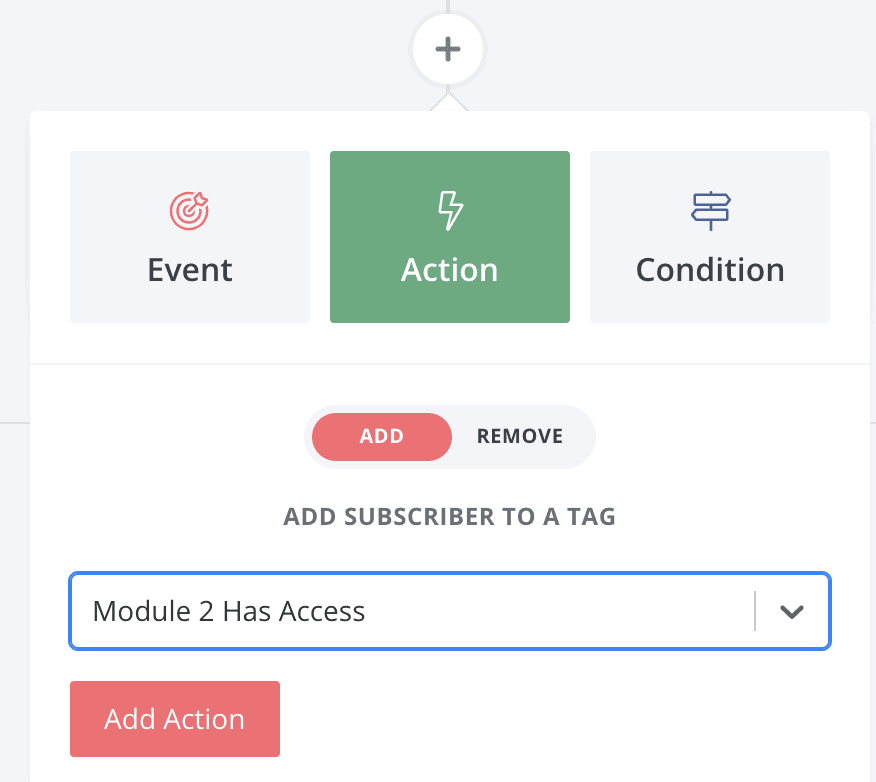
Select the Access tag as the tag to add. Click on Add Action once configured.
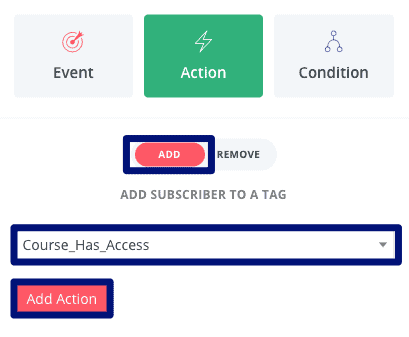
This will create a new member account and generate a password for the member, if they don’t already have one. It will also grant them access to the offering, and begin the drip automation process as set up in the AccessAlly offering.
6. Add to welcome sequence to send the login info
You can send welcome emails directly in AccessAlly, but you could also send them here through Kit.
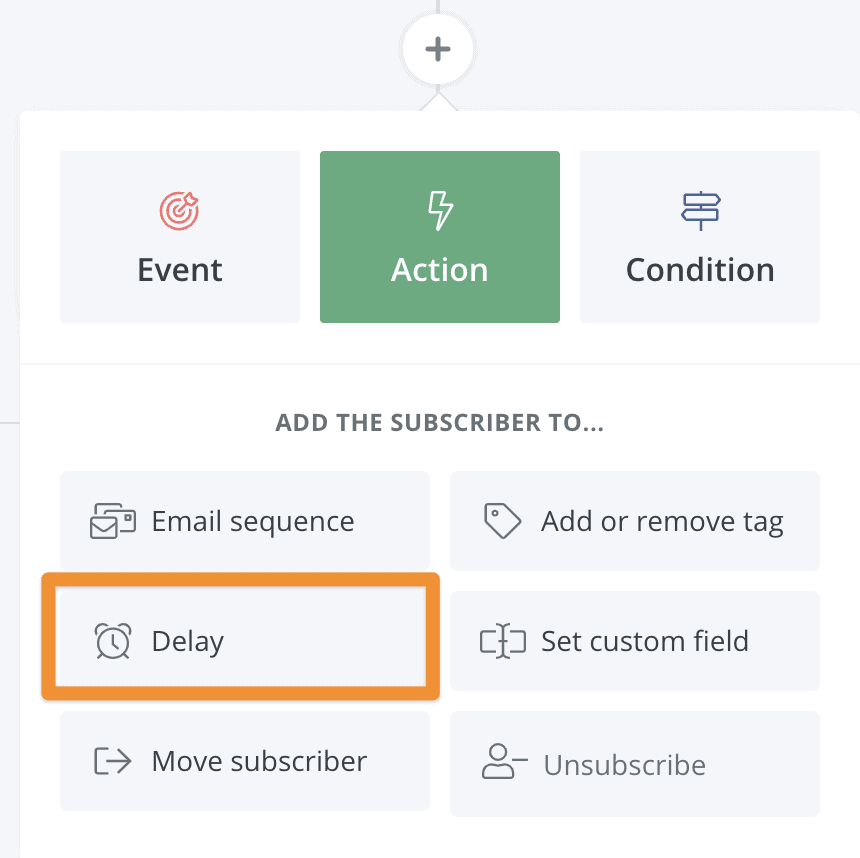
It might take a few seconds for AccessAlly to create the login info. To avoid the “Blank Password” issue, add a short delay before sending the welcome email. Clicking on the “+” and choose Delay.
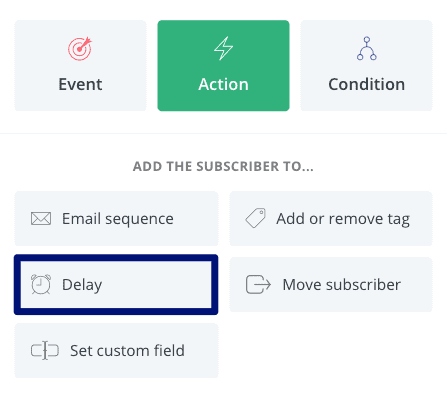
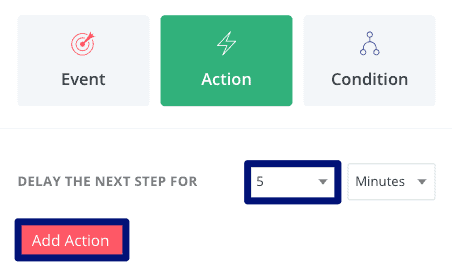
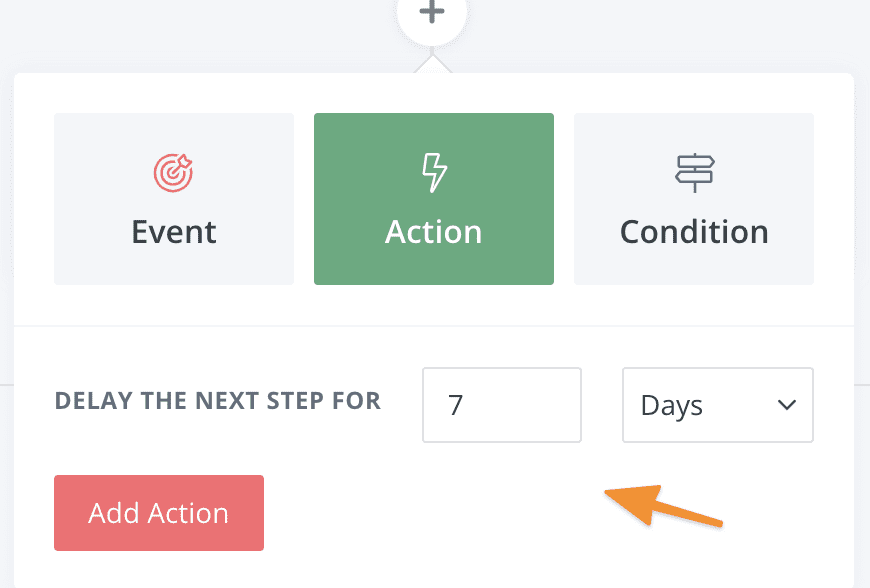
Select the shortest delay possible, 5 minutes. Click on Add Action once configured.
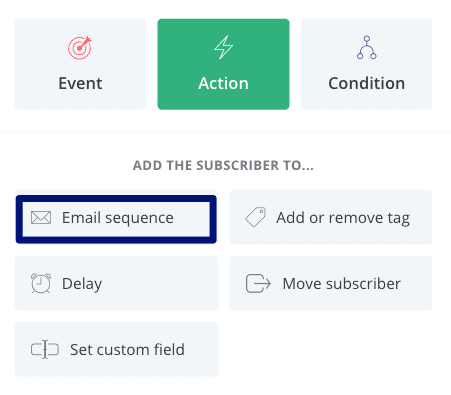
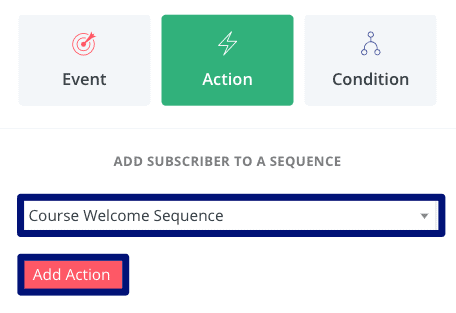
Now we can add the subscriber to the welcome sequence. Add a new item by clicking on the “+” and choose Email Sequence.
Select the welcome email sequence. Click on Add Action once configured.
AccessAlly will remove the webhook tag after running the webhook. However, as an extra precaution, we should remove the tag explicitly, so it can be added again in the future.
Add a new Add or remove tag action. Remove the tag that will trigger the Create Login webhook. Click on Add Action once configured.
7. Add module release tags (optional)
If you want to drip content over time, then you will create a set of tag applications after a delay, followed by an update user webhook tag.
First add a delay:
Choose how many days to wait before unlocking the next module and sending an email:
Then apply the tag for the next module:
Once you’ve updated this contact’s tags, it’s important to tell AccessAlly to run the update user webhook.
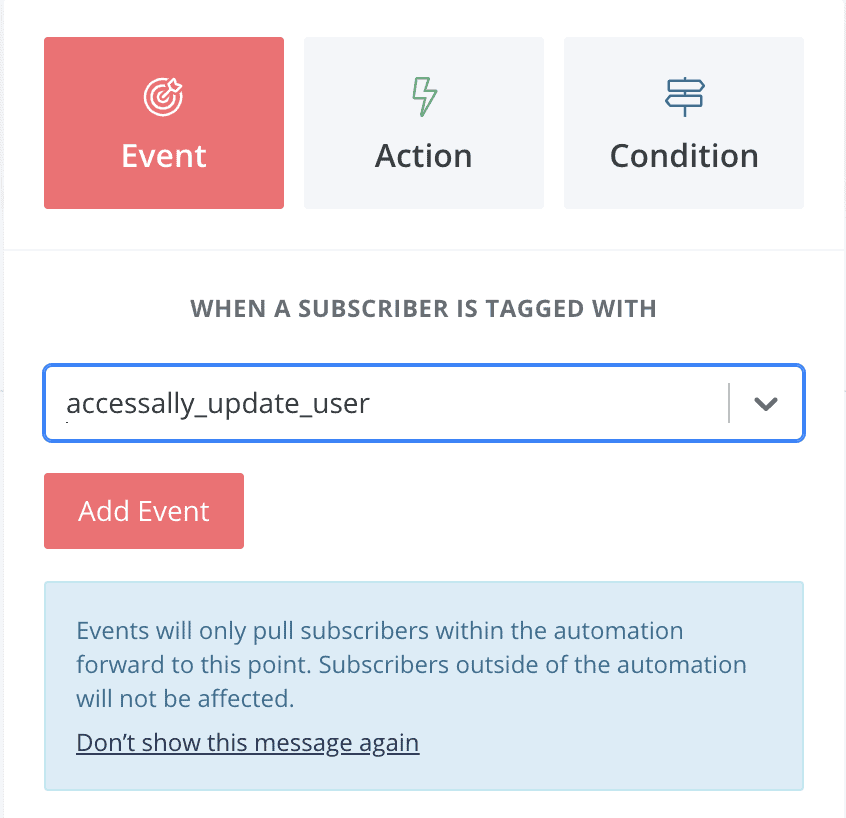
Finally, you can send them through an email sequence that lets them know their next module is ready.
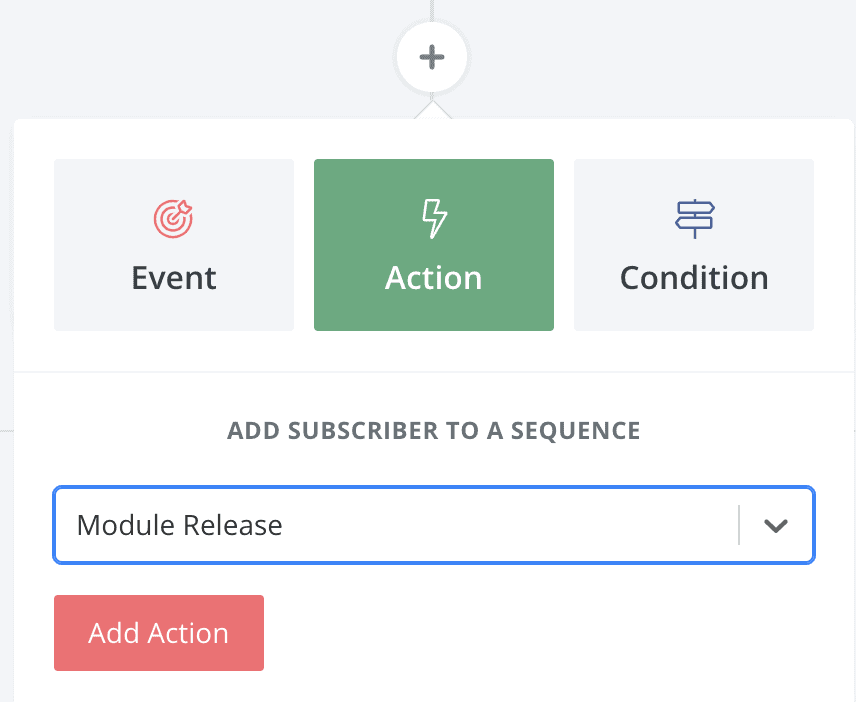
8. Create the Refund/Revoke Access Sequence (optional)
Why would you need to revoke access?
Revoking access to site content is a natural part of doing business, and might include any of the following scenarios:
- A client cancels their membership subscription
- A client’s payment card expires and cannot be charged for the next month’s subscription
- A course student cancels and requests a refund
- A client “downgrades,” and loses
partial access to the content
While you could manually apply the Revoke Access tag to a user inside AccessAlly, we recommend automating the process as a part of building out your CRM automation.
Important: The revoke sequence is only used for clients who can requested a refund / cancellation for the standalone course. It will negate the course access permission, so please use it with caution.
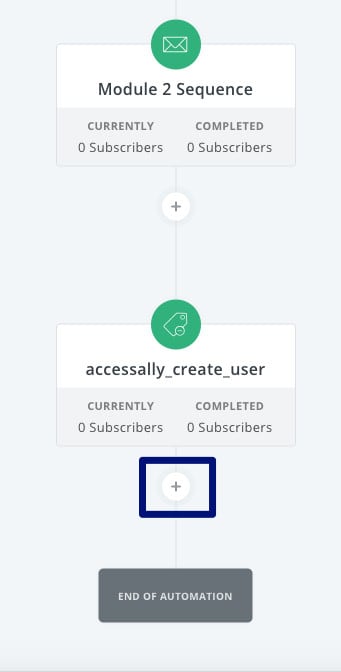
At the end of the automation (right before END OF AUTOMATION), add a new item by clicking on the “+”.
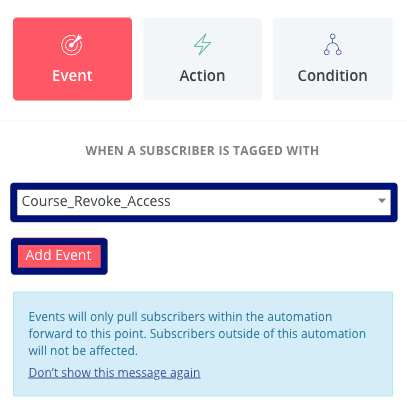
Go to the Event section and choose Tag is added.
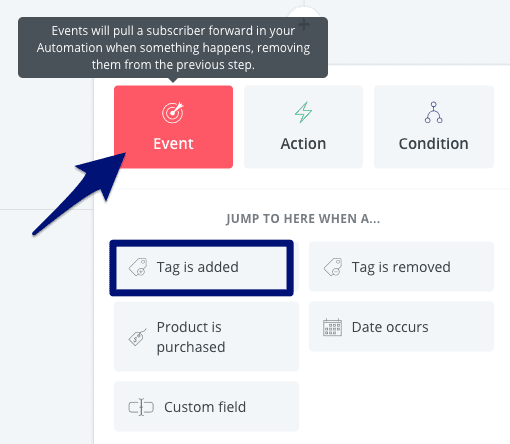
Choose the Revoke Access tag. Click on Add Event once configured.
Add a new item by clicking on the “+” and choose Add or remove tag.
Select the tag that will trigger the Update User webhook. Click on Add Action once configured.

The revoke access portion of the automation will be triggered with the Revoke Access tag is added, and it will remove access to the course and notify AccessAlly of the change.
9. Make the automation Live
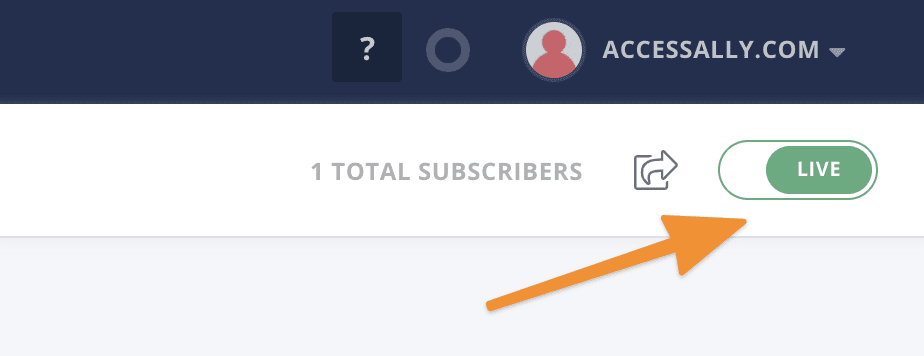
Give the automation a descriptive name and switch it from PAUSE to LIVE.
Now it’s a great time to follow our testing guide, to make sure everything is set up properly.

Creating Conditional Automations Based on AccessAlly Tags
Kit (ConvertKit) conditional automations allow you to create different paths for students based on their AccessAlly tags. This is useful for personalized completion paths, different student tracks, or branching course experiences.
What Are Conditional Automations?
Conditional automations use “if/then/else” logic to trigger different actions based on a subscriber’s tags or behavior.
Common use cases:
- Send different completion certificates based on course level (beginner vs advanced)
- Branch students into different follow-up sequences based on quiz results
- Trigger upsell emails only to students who completed prerequisite lessons
- Send different content based on membership tier (silver/gold/platinum tags)
- Create personalized learning paths based on student preferences
How AccessAlly Tags Sync to Kit
Before setting up conditional automations, understand how tags flow from AccessAlly to Kit:
- Student completes action in AccessAlly (e.g., finishes a lesson)
- AccessAlly adds tag to the user (e.g., “Module 1 Complete”)
- AccessAlly webhook fires to Kit
- Kit receives tag and applies it to subscriber
- Kit automation triggers based on that tag
💡 Key Point: Tags must be synced from AccessAlly to Kit via webhooks for conditional automations to work. See our webhook setup guide if this isn’t configured yet.
Setting Up Tag-Based Conditional Automations in Kit
Example 1: Basic If/Then Branching
Scenario: Send different completion emails based on whether student has “VIP Member” tag.
Step-by-step setup:
- Create the automation in Kit
- Go to Automations → New Automation
- Choose “Visual Automation”
- Name it: “Course Completion – Conditional Path”
- Set the trigger
- Trigger: “Subscriber is added tag”
- Tag: “Course Complete” (the tag AccessAlly adds when course is finished)
- Add a condition
- Click “+ Add Action”
- Select “Condition”
- Set condition: “Subscriber has tag: VIP Member”
- Configure the “Yes” path (for VIP members)
- Under “Yes” branch, click “+ Add Action”
- Choose “Send Email”
- Select email: “VIP Completion Certificate”
- Configure the “No” path (for regular members)
- Under “No” branch, click “+ Add Action”
- Choose “Send Email”
- Select email: “Standard Completion Certificate”
- Save and activate the automation
Visual flow:
Trigger: Course Complete tag added
↓
Condition: Has VIP Member tag?
↓
[YES] → Send VIP Completion Email
↓
[NO] → Send Standard Completion Email
Example 2: Multi-Level Branching
Scenario: Branch students into different follow-up sequences based on completion level.
- Trigger: “Assessment Complete” tag added
- First condition: Has “Advanced Level” tag?
- Yes: Add to “Advanced Track” sequence
- No: Check second condition
- Second condition: Has “Intermediate Level” tag?
- Yes: Add to “Intermediate Track” sequence
- No: Add to “Beginner Track” sequence
Visual flow:
Trigger: Assessment Complete tag
↓
Condition 1: Has Advanced Level tag?
↓
[YES] → Add to Advanced Sequence
↓
[NO] → Condition 2: Has Intermediate Level tag?
↓
[YES] → Add to Intermediate Sequence
↓
[NO] → Add to Beginner Sequence
Example 3: Upsell Based on Completion Tags
Scenario: Only send upsell offer to students who completed foundation course.
- Trigger: “Module 5 Complete” tag added (final module)
- Wait: 2 days
- Condition: Does NOT have “Advanced Course Student” tag?
- Yes (doesn’t have it): Send “Upgrade to Advanced Course” email
- No (already has it): Do nothing (end automation)
💡 Why this works: You’re only sending upsell to people who finished the prerequisite BUT haven’t purchased the advanced course yet.
Using Multiple Tag Conditions
Kit allows you to check multiple tags in a single condition:
AND Logic (must have ALL tags)
Use case: Only send email if student completed BOTH Module 1 AND Module 2.
- Add condition
- Select “Subscriber has tag”
- Choose “Module 1 Complete”
- Click “+ Add condition”
- Choose “AND”
- Select “Subscriber has tag”
- Choose “Module 2 Complete”
Result: Action only triggers if BOTH tags exist.
OR Logic (must have ANY tag)
Use case: Send email if student has EITHER “Silver Member” OR “Gold Member” tag.
- Add condition
- Select “Subscriber has tag”
- Choose “Silver Member”
- Click “+ Add condition”
- Choose “OR”
- Select “Subscriber has tag”
- Choose “Gold Member”
Result: Action triggers if ANY of the specified tags exist.
How to Set Up AccessAlly → Kit Tag Syncing
For conditional automations to work, AccessAlly must send tags to Kit via webhooks:
- In Kit, get your API Key and API Secret
- Go to Settings → Advanced → API & Webhooks
- Copy your API Key and API Secret
- In AccessAlly, configure Kit integration
- Go to AccessAlly → Settings → Integrations
- Find “ConvertKit (Kit)” section
- Enter API Key and API Secret
- Enable “Sync tags to ConvertKit”
- Save settings
- Test the connection
- Add a test tag to a user in AccessAlly
- Check if tag appears in Kit within 1-2 minutes
- If not, check webhook logs
See our complete Kit webhook setup guide for detailed instructions.
Testing Conditional Automations
Before going live, test your automations thoroughly:
Step 1: Create Test Subscriber
- Add yourself as a subscriber in Kit with a test email
- Use format like: [email protected] (Gmail ignores + suffix)
Step 2: Manually Apply Tags
- In Kit, manually add the trigger tag to your test subscriber
- Watch the automation run
- Check which path it takes
Step 3: Test Each Branch
- Test “Yes” path:
- Add the conditional tag (e.g., “VIP Member”)
- Trigger the automation
- Verify it follows the “Yes” branch
- Test “No” path:
- Remove the conditional tag
- Trigger the automation again
- Verify it follows the “No” branch
Step 4: Test End-to-End with AccessAlly
- Create test user in WordPress
- Manually trigger the action in AccessAlly (e.g., complete a lesson)
- Wait for webhook to fire (1-2 minutes)
- Check Kit automation logs to see if it triggered correctly
- Verify correct email was sent
Troubleshooting Conditional Automations
Automation Not Triggering
Check these:
- Is the automation active? (not draft mode)
- Is the trigger tag spelled exactly the same in AccessAlly and Kit?
- Are webhooks properly configured?
- Check Kit’s automation reports for errors
Wrong Branch Taken
Check these:
- Does the subscriber actually have the conditional tag?
- Are you using AND when you should use OR (or vice versa)?
- Check for typos in tag names
- Verify tag was synced from AccessAlly (check subscriber’s tags in Kit)
Tags Not Syncing from AccessAlly
Check these:
- Kit API credentials correct in AccessAlly settings?
- Is “Sync tags” enabled in AccessAlly integration settings?
- Check AccessAlly webhook logs for errors
- Verify subscriber exists in Kit (webhooks don’t create new subscribers)
Best Practices for Tag-Based Automations
- Use descriptive tag names
- Good: “Foundation Course – Module 3 Complete”
- Bad: “M3Done”
- Clear names prevent confusion when building automations
- Document your tag structure
- Keep a spreadsheet of all tags and what triggers them
- Note which automations depend on each tag
- Helps when troubleshooting or onboarding team members
- Test with actual timing
- Include wait steps in tests (automations often have delays)
- Don’t just test instant triggers
- Verify timing works as expected
- Use naming conventions
- Prefix tags by type: “Course – Module 1”, “Member – VIP”, “Purchase – Advanced”
- Makes it easier to find tags when building conditions
- Limit complexity
- Too many nested conditions get confusing
- Consider breaking complex automations into multiple smaller ones
- Easier to test and troubleshoot
Advanced Example: Personalized Learning Paths
Scenario: Students choose a track at enrollment, then receive personalized content throughout the course.
Setup:
- Enrollment: Student selects track (Marketing, Sales, or Operations) in AccessAlly
- AccessAlly applies track tag: “Track – Marketing”, “Track – Sales”, or “Track – Operations”
- Create separate automations for each module completion:
- Trigger: “Module 1 Complete”
- Condition: Which track tag does subscriber have?
- Send track-specific follow-up content
- Repeat for each module with track-specific conditional content
Benefits:
- Highly personalized experience
- Students only receive relevant content
- Higher engagement and completion rates
Common Conditional Automation Patterns
| Pattern | Use Case | Condition Logic |
|---|---|---|
| Completion-based upsell | Offer advanced course after completing beginner | Has completion tag AND does NOT have purchase tag |
| Tier-based content | Send different content to different membership levels | Has Silver OR Gold OR Platinum tag |
| Progress-gated | Only unlock advanced content after prerequisites | Has Module 1 Complete AND Module 2 Complete |
| Re-engagement | Send reminder only if user hasn’t completed yet | Does NOT have completion tag after X days |
| Quiz-based branching | Different follow-up based on quiz results | Has “Quiz – High Score” vs “Quiz – Low Score” tag |
💡 Pro Tip: Start simple with one conditional automation, test it thoroughly, then expand to more complex branching. It’s easier to troubleshoot simple automations than debug a complex web of conditions.