
This articles shares an overview of what you’ll find in the Subscriptions Tab. We recommend reading the Subscription Management Guide for details on managing subscription payment plans.
ARTICLE CONTENT:
Subscriptions Tab Location
AccessAlly > Sales > Subscriptions
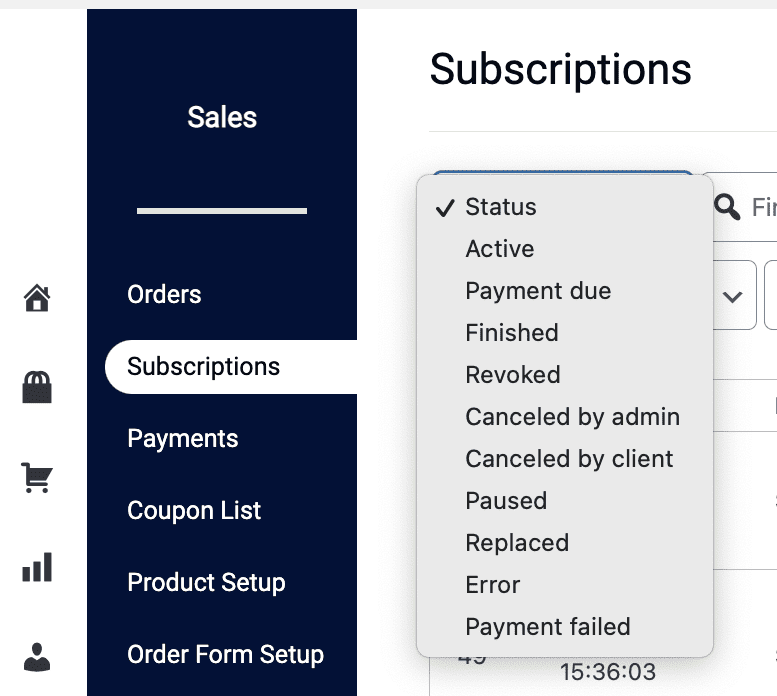
Filter by Subscription Status
You can filter the orders on this page by the statuses shown in the dropdown.
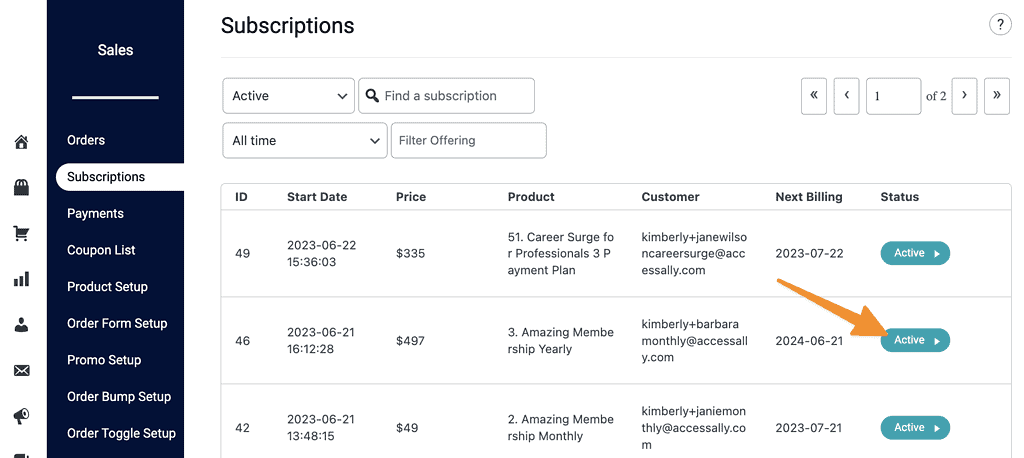
Active Subscription Status
The subscription is current and up to date. The next billing date is shown.
Quick tip! If you have finite payment plans, after all finite plan payments are made, there will be a next billing date. This date, does not charge a payment, it’s used to move the subscription from “Active” to “Finished” status.
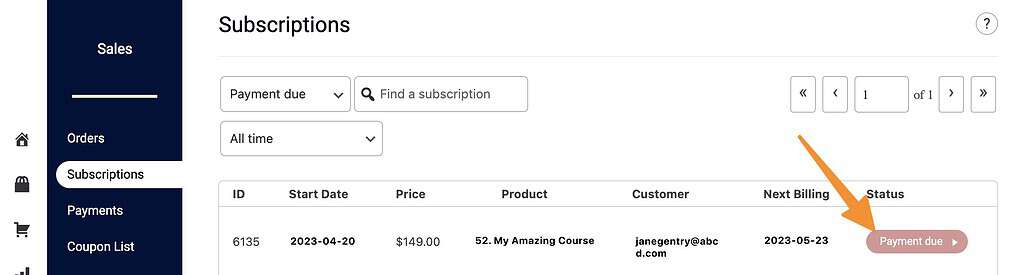
Payment Due Status
Assigned in a 3-day window as AccessAlly attempts to collect a payment that is due.
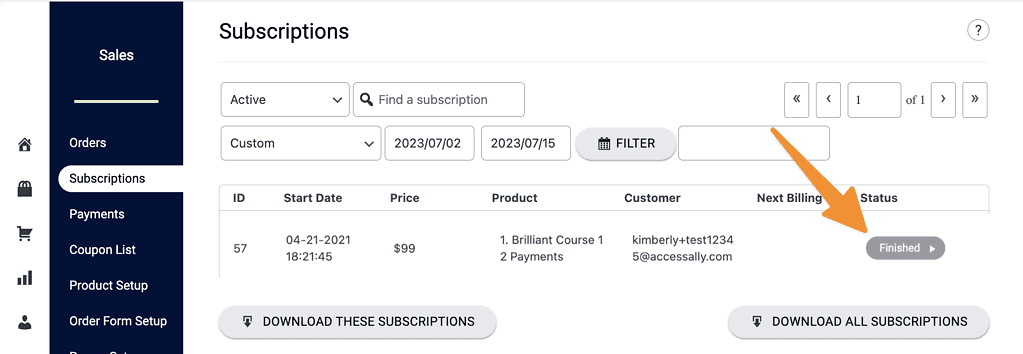
Finished Status
The number of finite payments have been completed. No remaining payments are due.
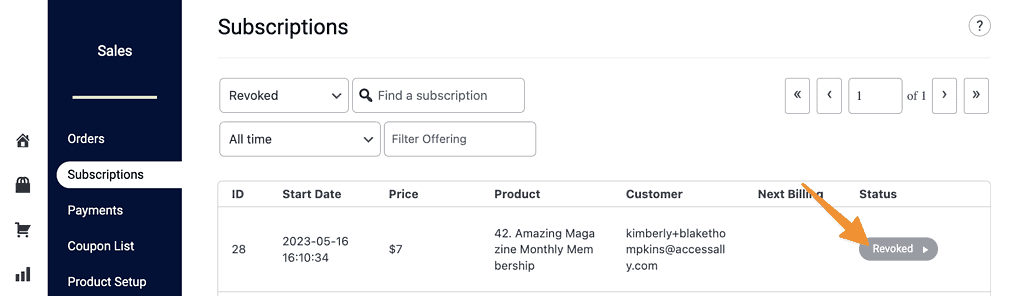
Revoked Status
This status is usually from a refund request or if a member has reached the end of your failed payment grace period.
About this status:
- The member (customer) is no longer able to access content
- Subscription payments are no longer processed
- Member can no longer update their credit card (Stripe) on the My Orders page
- Can be resumed to allow for member to update credit card (Stripe)
- PayPal customers need to purchase again on an AccessAlly order form
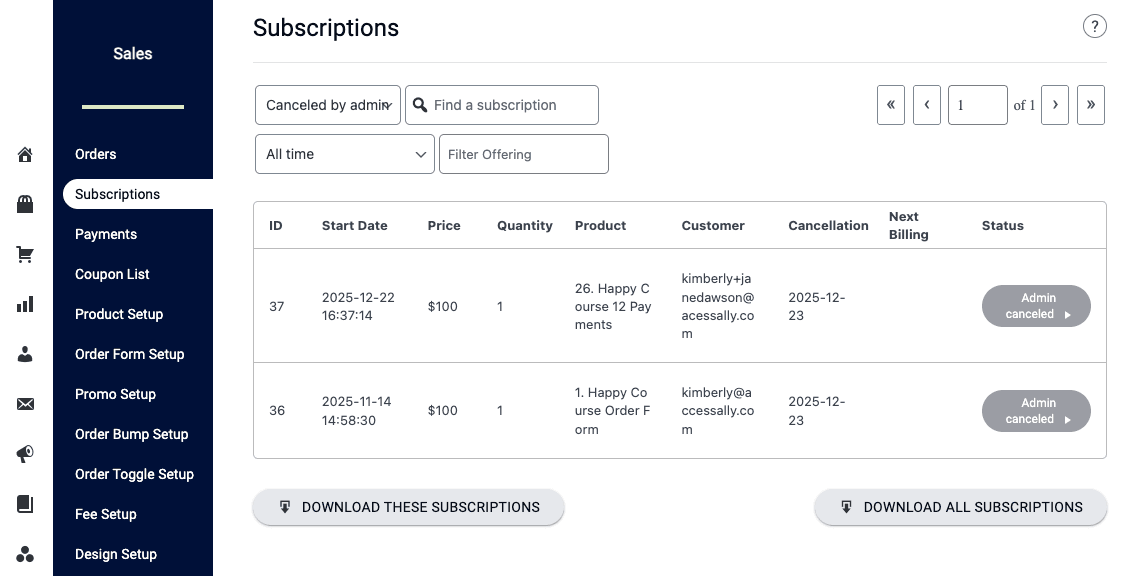
Canceled by Admin Status
This status appears if an admin has manually canceled a subscription via the Sales tab in AccessAlly. The cancellation date is displayed on the log.
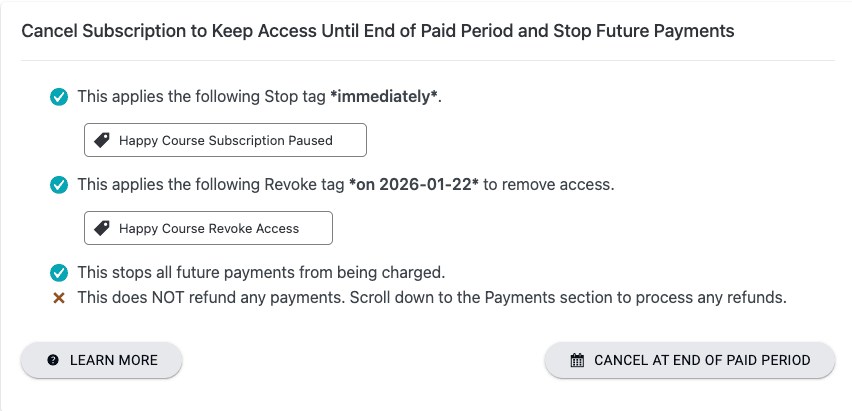
Access to content continues until the end of the current paid period. After paid period ends, status will change to “Revoked.”
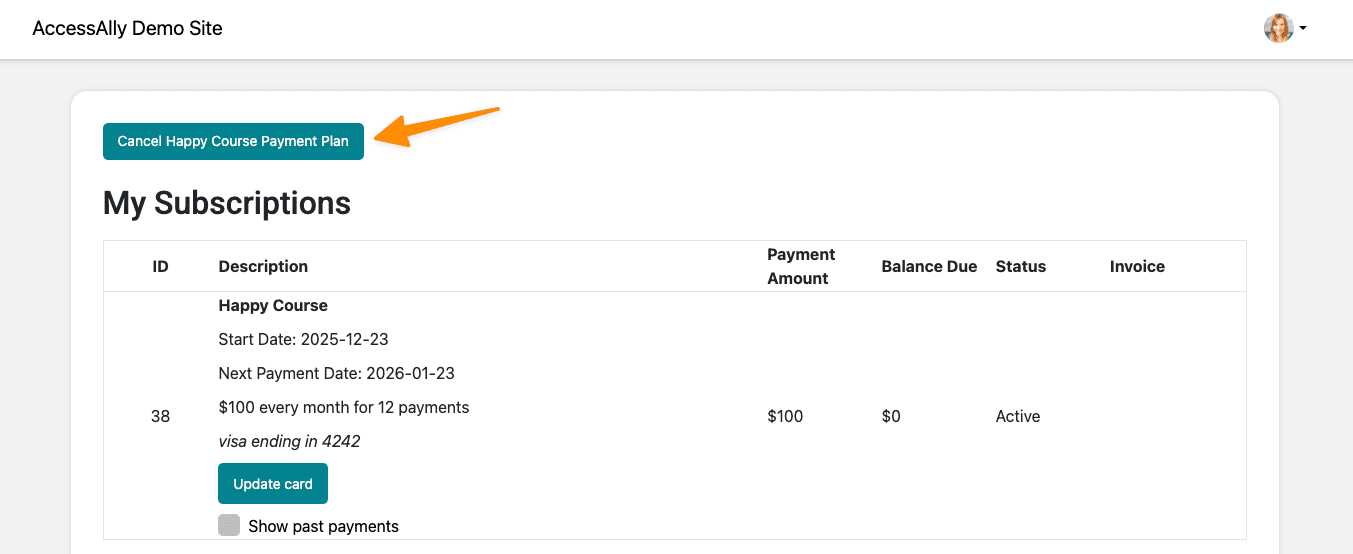
Canceled by Client Status
This status appears if a client clicks a cancel subscription custom operation button within your site as part of a self-cancelation flow.
A client in this status will show with a cancelation date.
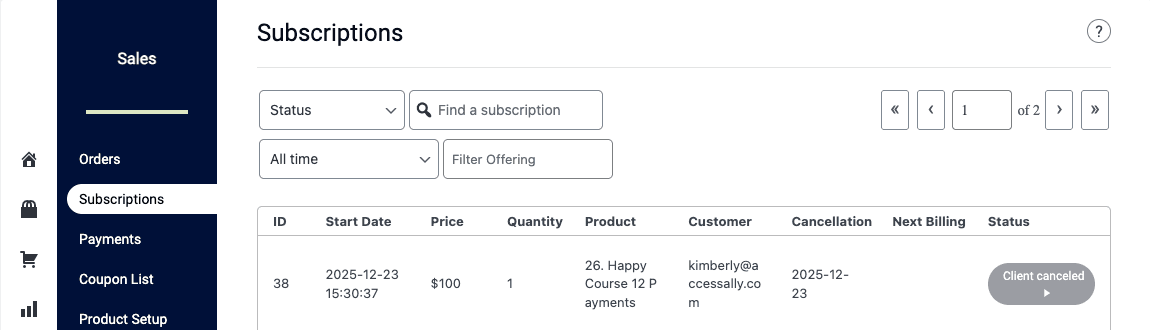
Access to content continues until the end of the current paid period. After paid period ends, status will change to “Revoked.”
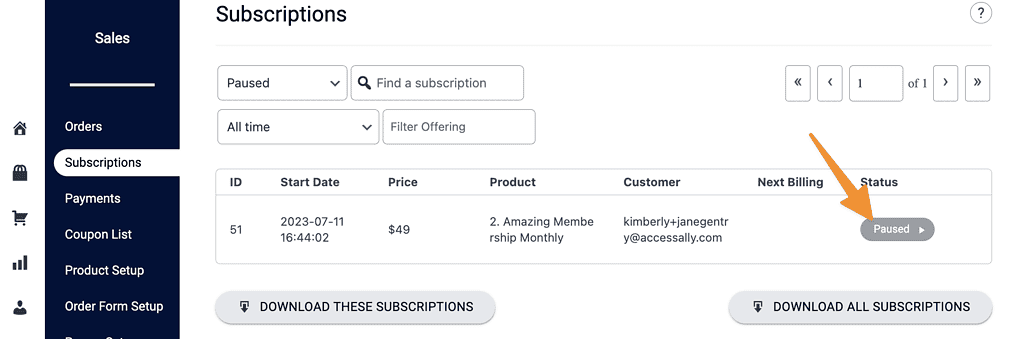
Paused Status
A client with this status keeps access to content, but is no longer paying recurring subscription payments for this offering.
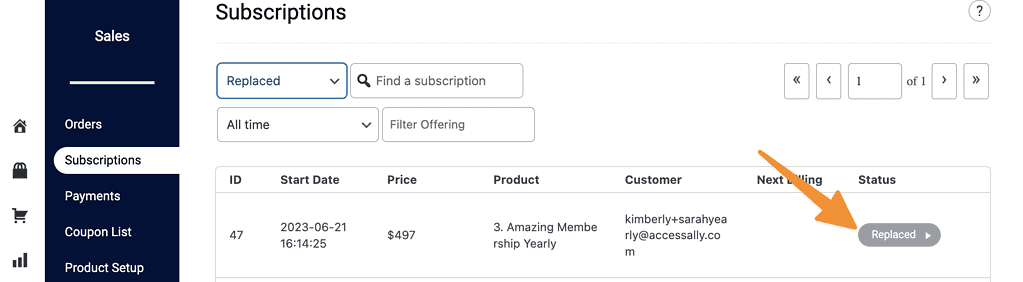
Replaced Status
A client with this status has replaced the subscription for a different one as part of a subscription upgrade or downgrade.
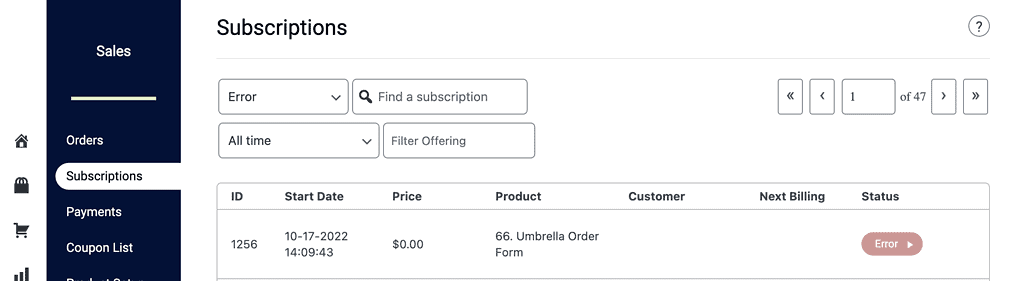
Error Status
A client with this status has had an error that is preventing the subscription from working. If you see this status contact us.
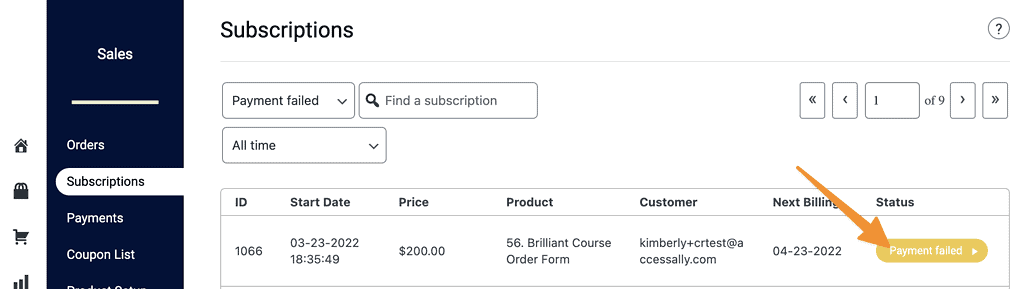
Payment Failed Status
A client with this status has had a failed payment. See How to Follow-Up on a Failed Payment.
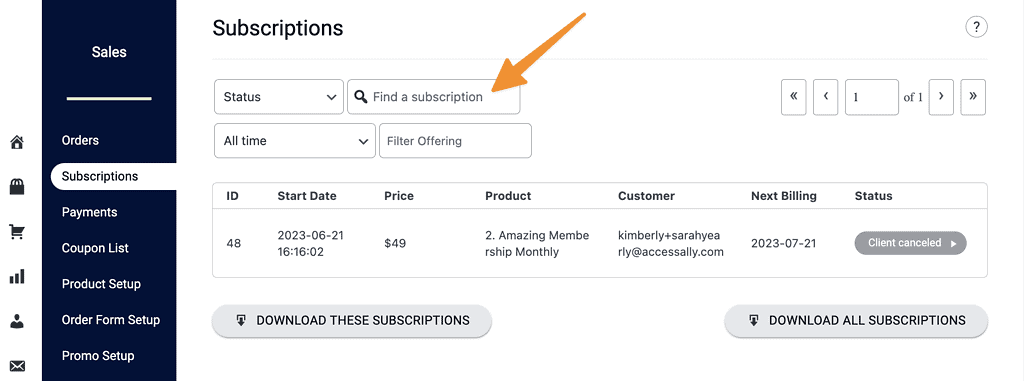
Search for Subscriptions
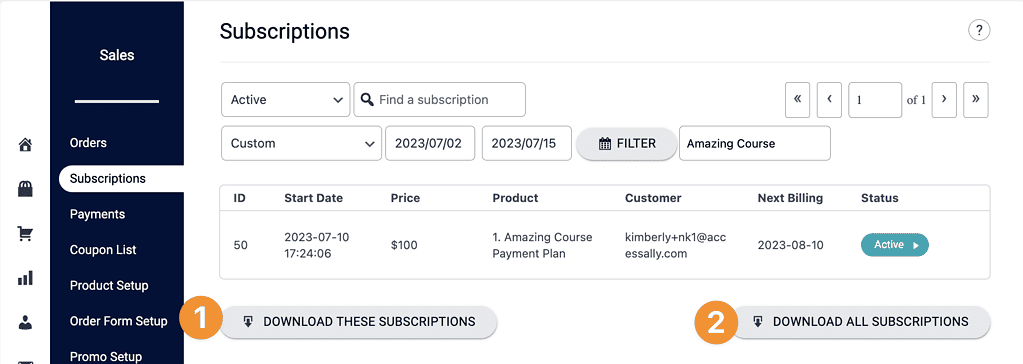
You can search for subscriptions by name, email address, and subscription ID number.
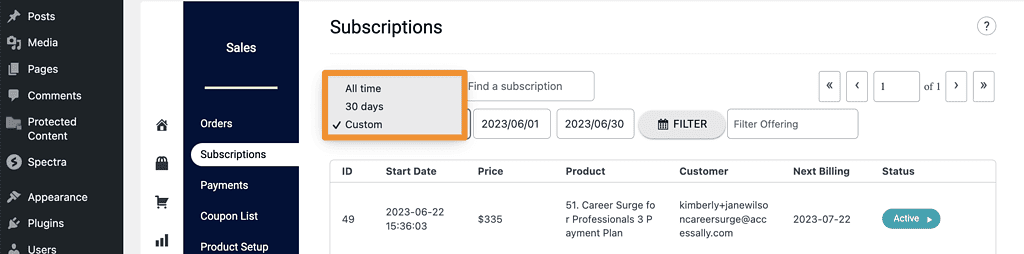
Search Timeline
You can select a timeline to apply to your search. For example all orders in June 2023 or all orders in the last 30 days.
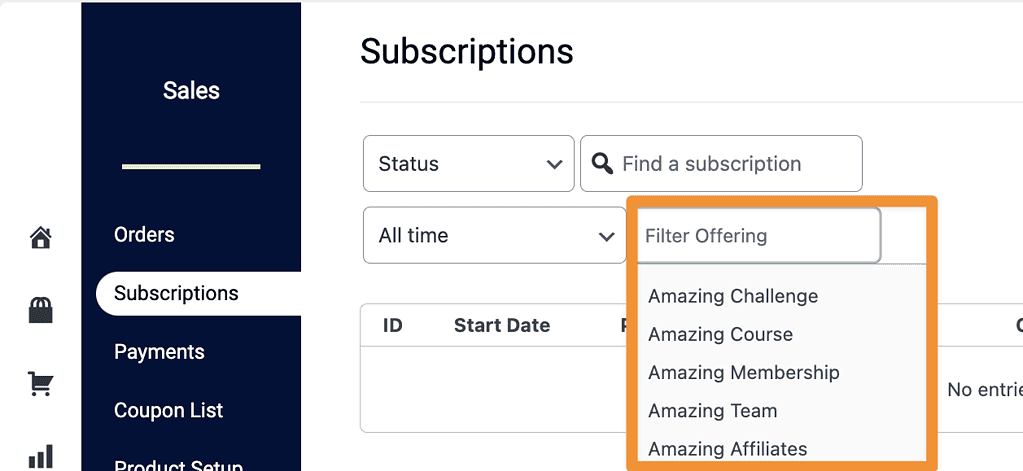
Filter by Offering Name
You can filter by offering name to get all subscriptions for a specific offering.
Download Your Subscriptions
At the bottom of the filter results you have two download options.
- Download these subscriptions – CSV file of subscriptions by page. Select page on top right and download just that page.
- Download all subscriptions – CSV file of all subscriptions on all pages shown on top right.
Items shown in the CSV download file.
- Subscription ID number
- Start Date
- Status
- Subscription History
- Order ID number
- Product
- Price
- Currency
- Quantity
- Customer Email
- CRM Contact ID number
- Customer ID (Stripe) or PayPal Email
- # of Payments
- Next Billing Date
- Cancelation Date
- Outstanding Balance
- Shipping Address
